Mahmudul Islam
Google Ads & Conversion Tracking Specialist
5 October 26
6 min read
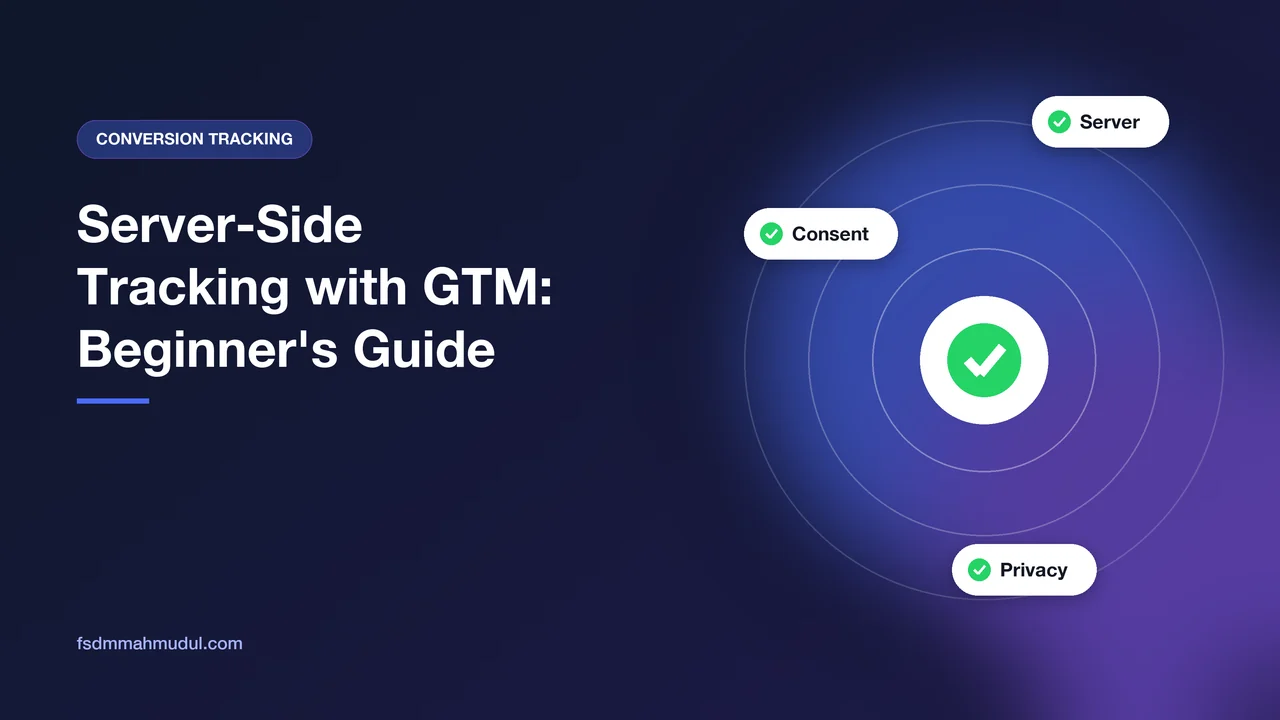
Illustration by Fsdm Mahmudul
Ad blockers, browser privacy rules and slow pages all chip away at your tracking. Sales still happen, but Google Ads and Meta never hear about some of them. Server-side tracking with Google Tag Manager is one of the best ways to win that data back.
This beginner's guide explains what server-side tracking is, when it is worth the effort, and how the setup works step by step. We keep it in plain English, so you can follow along even if you have never opened Tag Manager.
If you would rather hand it to a team that does this every week, our conversion tracking service includes full server-side setups.
On most websites, tracking happens in the visitor's browser. Small pieces of code, called tags, send data straight from the browser to Google, Meta and other platforms. This is "client-side" tracking, because it runs on the client (the visitor's device).
With server-side tracking, the browser sends data to one place first: your own tracking server. That server then passes the data on to each platform. You decide what gets sent, where, and in what form.
Google Tag Manager (GTM) has two kinds of containers to make this work:
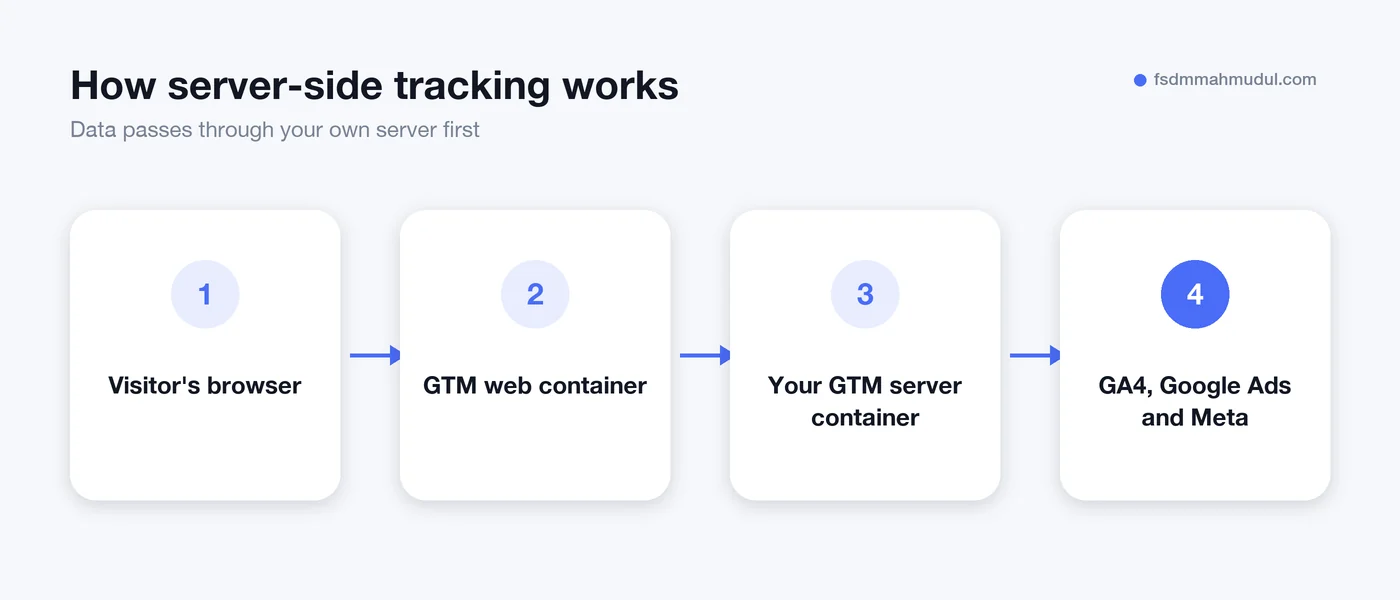
Server-side tracking does not magically capture every sale. But it fixes several real problems with browser-only tracking.
| Browser-only tracking | Server-side tracking | |
|---|---|---|
| Where tags run | Visitor's browser | Your own cloud server |
| Ad blockers | Often block requests | Fewer requests blocked on your own subdomain |
| Cookies | Often short-lived in Safari and other browsers | First-party cookies that can last longer |
| Page speed | Many scripts slow the page | Fewer scripts in the browser |
| Data control | Each platform takes what it wants | You choose what each platform receives |
| Cost | Free | Monthly hosting fee |
The biggest win is often for Meta. The Meta Conversions API (CAPI) sends events from a server, and a GTM server container is a common way to run it. We explain the Meta side in detail in our Meta Conversions API guide.
Server-side tracking costs money to host and takes skill to maintain. It is not the first thing every business needs.
It usually makes sense when:
It can wait if your basic tracking is not set up yet. Fix your GA4 key events and Google Ads conversions first. A server container sends broken data just as faithfully as good data.
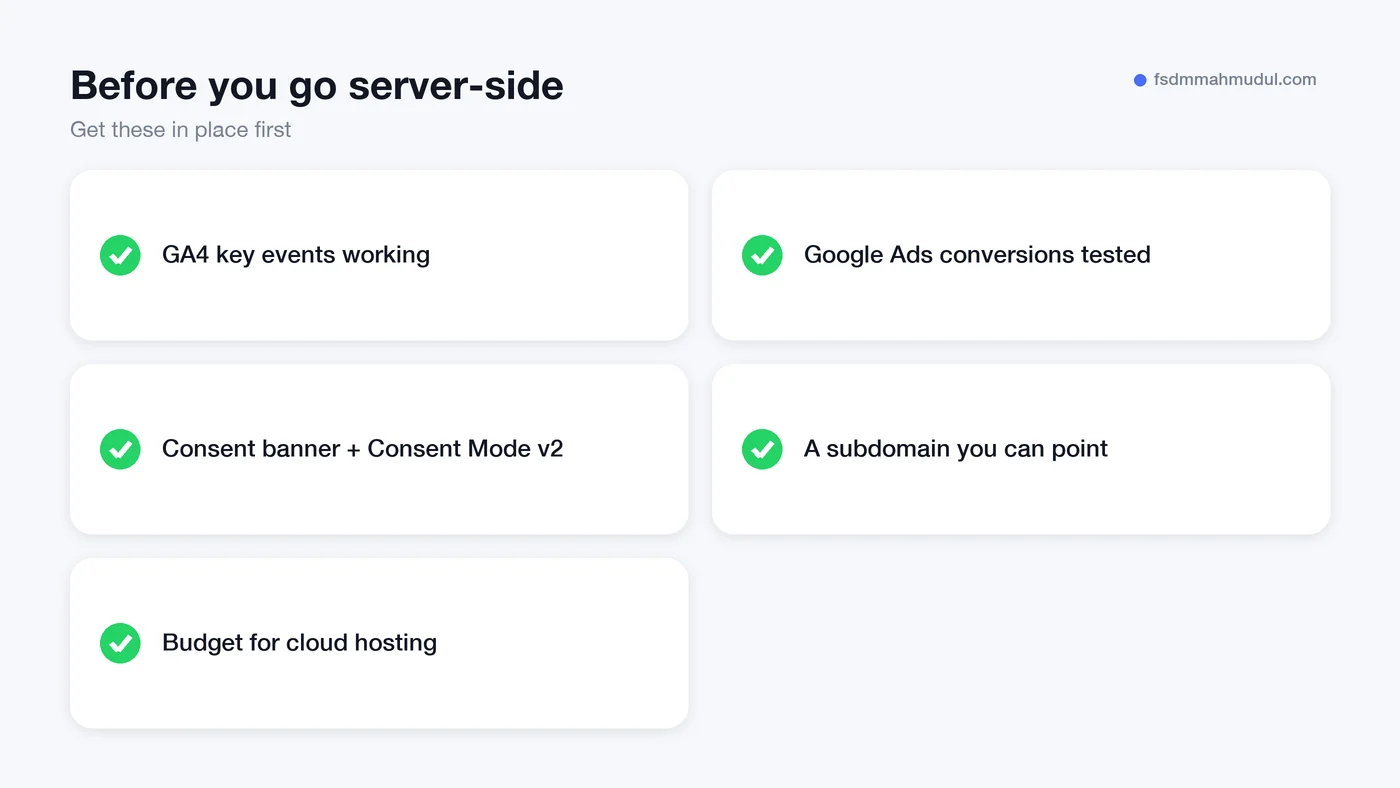
Here is the setup in the order we follow. Each step is simple on its own. The skill is in getting them all to work together.
data.yourstore.com at your server. This makes the tracking first-party, meaning it comes from your own website's domain.event_id. Meta then counts it once, not twice.Most server-side problems we fix come from a handful of mistakes.
event_id can inflate your results.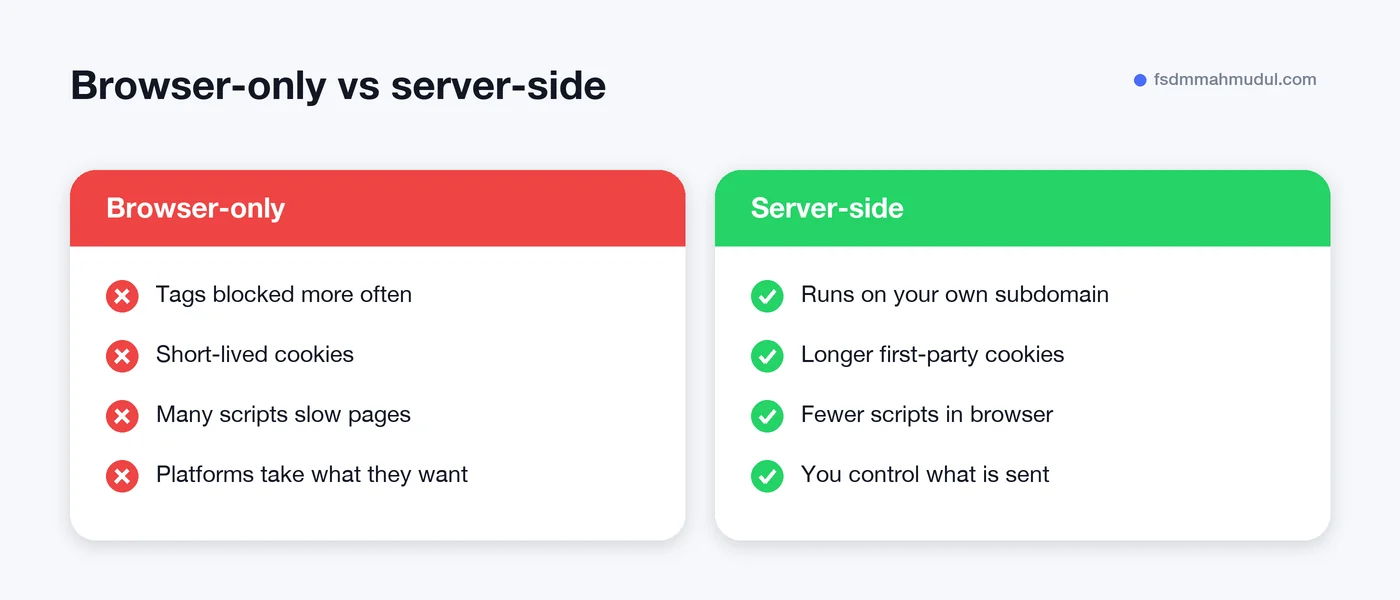
We never start with the server. We first audit the existing browser tracking, fix any gaps, and only then move tags to a server container. That way the server forwards clean data from day one.
You can see this kind of work in our Meta Pixel and Conversions API projects. Across 50+ clients, the pattern is the same: clean, trustworthy data lets the ad platforms spend your budget more wisely.
It helps, but it is not a guarantee. Requests sent to your own subdomain are blocked less often than requests to well-known tracking domains. Some blockers and browsers still stop them, and you must always respect your visitors' consent choices.
You pay for the cloud server that runs your GTM server container. The cost grows with your website traffic, so a small shop pays much less than a big one. There is also the setup and maintenance time, whether that is yours or a specialist's.
Yes, in most cases. The web container still collects the data in the browser and sends it to your server. For Meta, running both the Pixel and the Conversions API with deduplication is the setup Meta recommends.
Server-side tracking gives you more control over data, which can help with privacy rules. But it does not make you compliant on its own. You still need a proper consent banner, Consent Mode v2 for EEA visitors, and a clear privacy policy.
Server-side tracking is a strong upgrade once your basic tracking is solid. It gives ad platforms better data, and better data usually means smarter bidding.
Not sure if your business is ready for it? Get a free tracking audit and our team will tell you honestly whether server-side tracking is worth it for you, and what to fix first.
We can review your current setup and show which issue should be addressed first.
Get My Free AuditHere are answers to the questions people ask us most. Can't find yours? Message us and we usually reply within an hour.

We review your campaigns, tracking or conversion journey, then show you the main issue limiting performance, its business impact and a practical next step.
Yes. Most clients start from $1,000 a month in ad spend. We will tell you honestly if your budget is too small.
A dedicated specialist from our team runs your account day to day, and Mahmudul oversees the strategy and reviews the results. You always have one point of contact, so you never have to chase anyone.
No. Work is month to month and you can cancel any time.
Always. Your accounts, campaigns and tracking stay yours, even if we stop working together.
Wasted spend usually drops in the first 2 weeks. Steady growth shows by month 2 or 3.
Clients in Bangladesh, the US, UK, Canada, Australia and Europe. Our team works across time zones.
Request a free audit or message us on WhatsApp. We confirm the audit is a good fit, share our findings or invite you to a review, then agree the next step with Mahmudul.
Yes. Our tracking specialist checks that every sale, lead and call is counted correctly, because good ads need good data.
Yes. We send clear, simple notes your developer can follow, or our own developer makes the changes for you.
With a team. Mahmudul leads a small group of specialists in ads, tracking, page design and website development. Each person works on what they know best, and Mahmudul checks the work before it reaches you. If someone is away, another team member covers for them, so your work never stops.
You get a simple monthly report showing what we spent, what we got back and what we will do next. Mahmudul reviews every report before it is sent.