Mahmudul Hossain
Google Ads & Conversion Tracking Specialist
30 September 26
7 min read
Illustration by Fsdm Mahmudul
Your cookie banner does an important job, but it can quietly cut your Google Ads data in half. Every visitor who clicks "Reject" disappears from your reports unless your site tells Google what they chose. Consent Mode v2 is how your site passes that message, and it decides how much measurement you keep.
In this guide we explain what Consent Mode v2 is, what changed from the first version, and how to set it up step by step. It is a core part of our conversion tracking service, but a shop owner with Google Tag Manager access can follow along.
If you track sales and leads in GA4 as well, read this alongside our guide to setting up GA4 key events. Consent affects both tools in the same way.
When someone lands on your site, your cookie banner asks if they accept tracking. Consent Mode is a small piece of setup that passes their answer to your Google tags: Google Ads, GA4 and Floodlight.
The tags then change how they behave. If the visitor says yes, they work as normal. If the visitor says no, they do not store cookies or send personal identifiers. Without Consent Mode, the banner and the tags do not talk to each other. Either the tags ignore the choice (a legal problem) or they are simply blocked (a data problem).
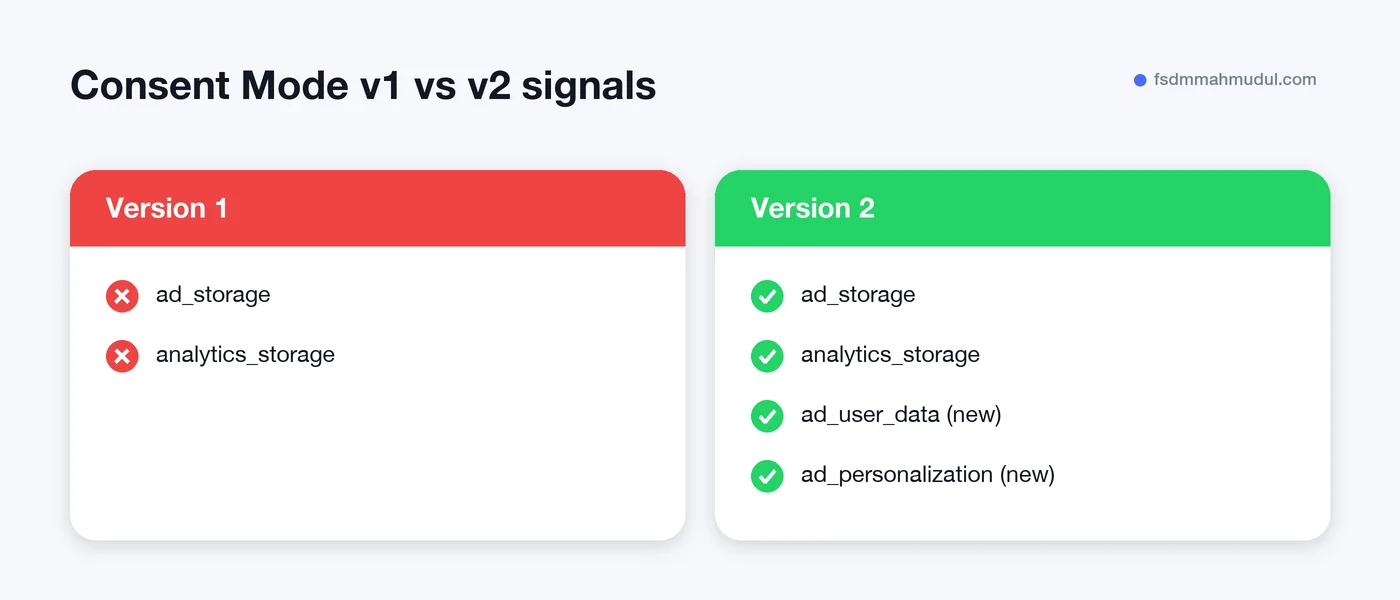
The first version had two signals. Version 2 added two more, so there are now four:
| Signal | What it controls |
|---|---|
ad_storage | Whether ad cookies can be stored |
analytics_storage | Whether analytics cookies, such as GA4's, can be stored |
ad_user_data | Whether user data can be sent to Google for advertising |
ad_personalization | Whether data can be used for remarketing and personalised ads |
The two new signals, ad_user_data and ad_personalization, tell Google what it is allowed to do with data after it arrives. This is how Google meets its duties under the EU Digital Markets Act.
If you get traffic from the European Economic Area (EEA) or the UK, Consent Mode v2 is required to keep Google's audience and measurement features working. That covers remarketing lists, Customer Match, personalised ads and enhanced conversions for those visitors.
Without the new signals, Google treats data from those visitors as if consent was not given for ad use. Your audiences stop growing and your conversion reporting gets thinner.
If all of your customers are outside the EEA and UK, it is not required today. We still recommend it for any shop that sells into Europe, even occasionally, because privacy rules keep moving in the same direction.
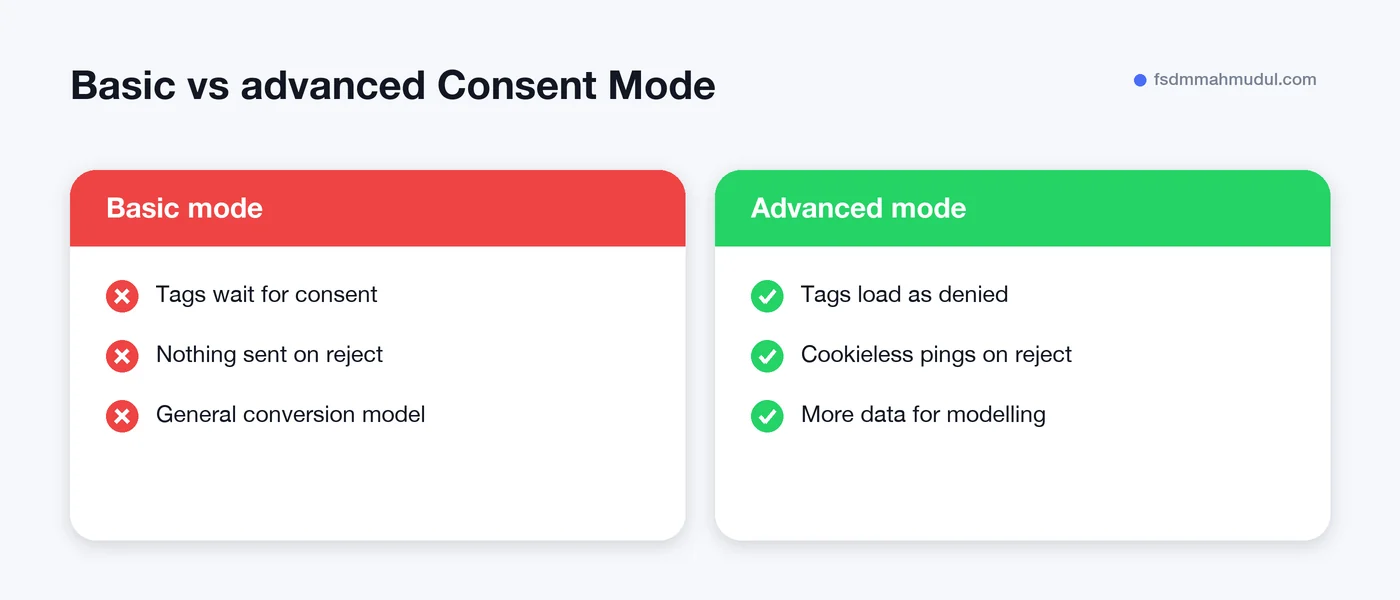
There are two ways to run Consent Mode. The difference is what happens before and after a visitor declines.
When some visitors decline, Google can fill part of the gap with conversion modelling. It looks at patterns from people who did consent and estimates the conversions it could not observe directly. Those modelled conversions appear in your Google Ads reports and feed Smart Bidding.
Both modes can benefit from modelling, but advanced mode gives Google more to work with because of those cookieless pings. Basic mode relies on a more general model. GA4 has its own version, called behavioural modelling, which needs a minimum amount of daily traffic before it switches on.
Which mode is right is partly a legal question. Some businesses, and some legal advisers, prefer basic mode because nothing loads before consent. We set out the trade-off for each client and let them decide with their adviser. We do not give legal advice, and you should not take this article as legal advice either.
The usual setup uses a consent banner from a Google-certified CMP (consent management platform) and Google Tag Manager. Google keeps a list of certified CMP partners, and most popular banner tools are on it.
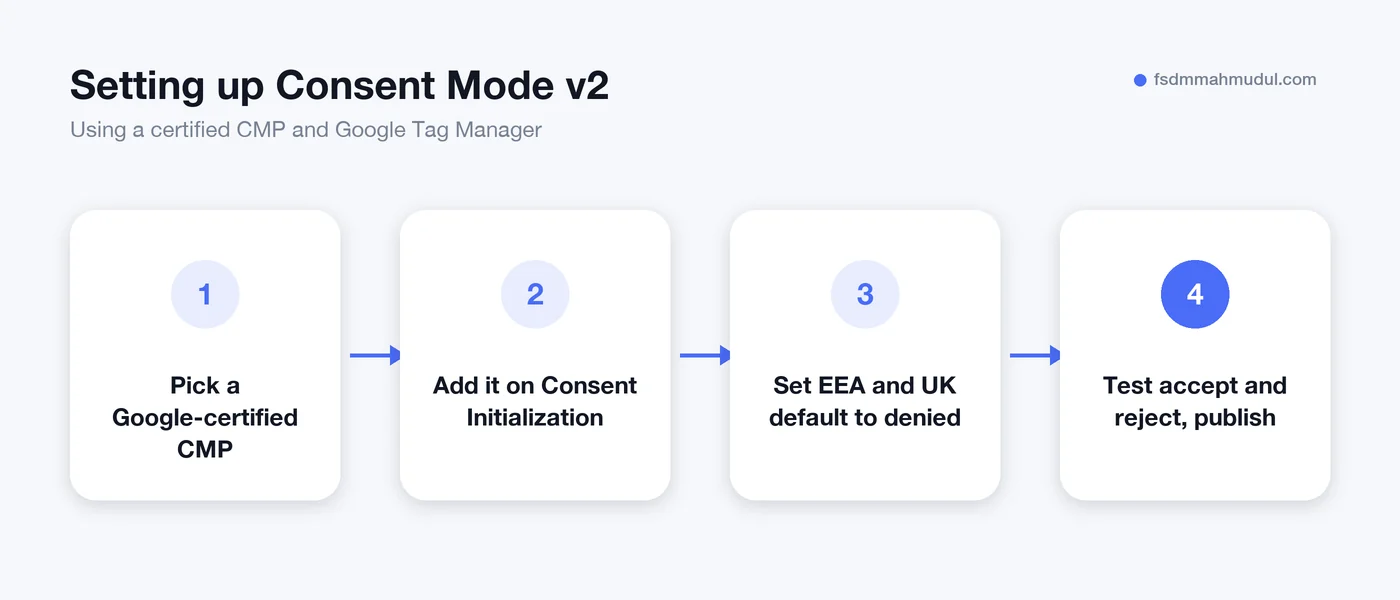
After a few days, open a conversion action in Google Ads and look at the Diagnostics tab. Google shows whether consent signals are being received. In GA4, open Admin and then Data collection to see the consent settings status.
If Google reports missing signals, the cause is usually a banner that loads too late or a Google tag added outside Tag Manager that ignores consent.
ad_user_data and ad_personalization are missing, you are still on version 1 as far as Google is concerned.No. The cookie banner asks the visitor for permission. Consent Mode v2 passes that answer to your Google tags so they behave correctly. You need both.
You will lose some direct measurement, as declined visits cannot be tracked with cookies. With Consent Mode v2 in place, Google can use conversion modelling to estimate part of what is missing. Without it, those conversions are simply gone from your reports.
Advanced mode usually gives Google more data for modelling, because tags send cookieless pings when consent is denied. Basic mode is stricter, as nothing loads before consent. Talk the choice through with your legal adviser, then we can set up either one.
It is required for EEA and UK traffic. If you have none, it is optional for now. It is still good practice, and it is easier to set up before you expand than after.
Consent Mode v2 sits between your cookie banner and every Google tag on your site. When it is wrong, your ad data shrinks without any warning in your dashboard.
You can see how our team handles tracking projects in our GA4 tracking work in the portfolio. If you would like us to check your banner and tags, book a free tracking audit and we will tell you exactly what needs fixing.
We can review your current setup and show which issue should be addressed first.
Get My Free AuditHere are answers to the questions people ask us most. Can't find yours? Message us and we usually reply within an hour.

We review your campaigns, tracking or conversion journey, then show you the main issue limiting performance, its business impact and a practical next step.
Yes. Most clients start from $1,000 a month in ad spend. We will tell you honestly if your budget is too small.
A dedicated specialist from our team runs your account day to day, and Mahmudul oversees the strategy and reviews the results. You always have one point of contact, so you never have to chase anyone.
No. Work is month to month and you can cancel any time.
Always. Your accounts, campaigns and tracking stay yours, even if we stop working together.
Wasted spend usually drops in the first 2 weeks. Steady growth shows by month 2 or 3.
Clients in Bangladesh, the US, UK, Canada, Australia and Europe. Our team works across time zones.
Request a free audit or message us on WhatsApp. We confirm the audit is a good fit, share our findings or invite you to a review, then agree the next step with Mahmudul.
Yes. Our tracking specialist checks that every sale, lead and call is counted correctly, because good ads need good data.
Yes. We send clear, simple notes your developer can follow, or our own developer makes the changes for you.
With a team. Mahmudul leads a small group of specialists in ads, tracking, page design and website development. Each person works on what they know best, and Mahmudul checks the work before it reaches you. If someone is away, another team member covers for them, so your work never stops.
You get a simple monthly report showing what we spent, what we got back and what we will do next. Mahmudul reviews every report before it is sent.